Smoothing Meshes
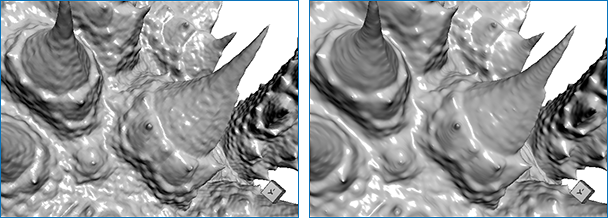
After generating a mesh, it is sometimes necessary to modify that mesh before further processing or analysis can begin. In particular, meshes extracted from volumetric image data obtained by CT or MRI devices often contain significant amounts of noise. Removing noise while preserving the shape of a mesh, as shown in the example below, is available in both the Data Properties and Settings panel (see Smoothing Meshes Automatically) and in the Mesh Smoothing panel (see Smoothing Meshes with the Mesh Tools).
Original mesh on left and smoothed mesh on right
 Smoothing Meshes Automatically
The options in the Smooth mesh box let you smooth meshes by a selected number of iterations. This can make cells better shaped and the vertices more evenly distributed.
How to Smooth a Mesh Automatically
- Select the required mesh in the Data Properties and Settings panel.
- Select a number of iterations in the Iterations box, as shown below.

Note The more iterations selected, the smoother the result will be.
- Click the Smooth Mesh button.
Smoothing Meshes with the Mesh Tools
Additional options for smoothing meshes are available in the Mesh Smoothing panel on the Mesh Tools tab. Right-click the required mesh in the Data Properties and Settings and then choose Mesh Smoothing in the pop-up menu to open the Mesh Smoothing panel, shown below.
Mesh Smoothing panel

| Description | |
|---|---|
|
Mesh |
Indicates the currently selected mesh, to which the subdivision will be applied. If required, you can select another mesh in the drop-down menu. |
|
Method |
Two methods are available in Dragonfly for smoothing meshes — Laplacian and Hamming windowed smoothing. Laplacian smoothing… For each vertex in the mesh, a new position is chosen based on local information and the vertex is moved there. This operation produces the Laplacian of the mesh. Hamming windowed smoothing… Used as a windowing function named after R. W. Hamming that tapers discontinuities (see https://docs.scipy.org/doc/scipy-1.0.0/reference/generated/scipy.signal.hamming.html for more information). |
|
Number of iterations |
Sets the maximum number of smoothing passes. The Number of Iterations corresponds to the degree of the polynomial that is used to approximate the windowed sinc function. In many cases, ten or twenty iterations is all that is usually necessary. |
|
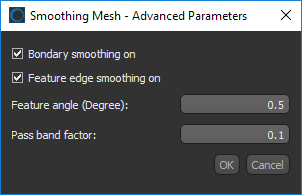
Opens the Advanced Parameters dialog, shown below, whenever the selected method is Hamming Windowed Smoothing.
Boundary smoothing… If selected, smoothing of vertices on the boundary of the mesh is turned on. Feature edge smoothing on… If selected, smoothing along sharp interior edges is turned on. Feature angle (degree)… Lets you specify the feature angle for sharp edge identification. Pass band factor… Lets you set the pass band factor for the windowed sinc filter. |
|
|
Create new mesh |
Lets you choose an output target — at the input so that the original mesh is transformed, or at the output so that a new mesh is created and the original remains unmodified. Whenever possible, you should try to retain the original mesh so that you can compare the original and subdivided versions. |
 How to Smooth a Mesh with the Mesh Tools
- Right-click the mesh that you want to smooth in the Data Properties and Settings panel and then choose Mesh Smoothing in the pop-up menu.
The Mesh Smoothing panel appears on the right side of the workspace on the Mesh Tools tab.
- Select a smoothing method — Laplacian Smoothing, or Hamming Windowed Smoothing, as required.
Note If you selected Hamming Windowed Smoothing, you can also set the advanced parameters.
- Select the number of iterations required.
- Check the Create new mesh option, if required.
Whenever possible, you should try to retain the original mesh so that you can compare the original and smoothed versions.
- Click the Apply button.